The February 2026 security update for Windows 11, known as KB5077181, has sparked growing concern among PC gamers. Shortly after installation, many users began reporting rhythmic game stutter that had never appeared before the update.
Importantly, this issue does not behave like typical low frame rate drops or network lag. Instead, players experience short, repeated pauses that occur at regular intervals during gameplay. As a result, even high-performance systems feel unstable.
Community Reports Point to Fullscreen Optimizations
Several users on Reddit and PC support forums noticed a clear pattern. The stutter begins immediately after installing KB5077181 and disappears once they disable Fullscreen Optimizations for the affected game executable.
Before this update, most users never needed to touch this setting. Games previously ran smoothly with Fullscreen Optimizations enabled by default. Now, however, the feature appears to introduce unintended interruptions.
That said, disabling Fullscreen Optimizations can cause minor side effects. In some cases, Windows no longer displays the volume overlay on top of the game window.
Possible Link to Desktop Window Manager and Nvidia GPUs
According to community analysis, the problem may relate to changes in Desktop Window Manager (DWM) behavior introduced by the update. Although Microsoft claimed the patch improves full-screen gaming permissions, the fix may have created new conflicts.
Notably, many reports come from systems using Nvidia GPUs. This group already faced performance issues in earlier updates, which makes the situation even more frustrating.
Update Also Causes System Stability Problems
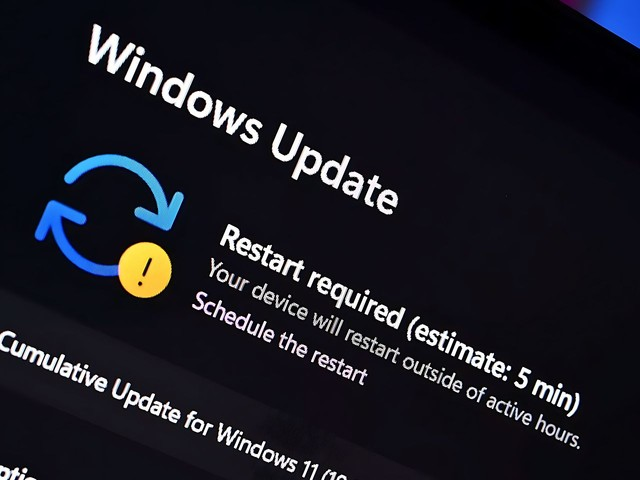
Beyond gaming, KB5077181 has received criticism for broader stability issues. Some users report infinite reboot loops, with systems restarting more than ten times in a row.
Others mention broken WPA3 Wi-Fi connections and login failures linked to the System Event Notification Service. Together, these problems have damaged the update’s reputation among performance-focused users.
Microsoft Response and Temporary Workarounds
At the time of writing, Microsoft has not officially confirmed the gaming stutter bug. However, affected users can submit reports through the Feedback Hub to help engineers investigate.
For players who cannot tolerate the issue, some analysts recommend uninstalling the update temporarily and pausing Windows Update. This option carries security risks, since KB5077181 also patches active zero-day vulnerabilities.
How to Disable Fullscreen Optimizations
For now, the most reliable workaround involves disabling Fullscreen Optimizations manually:
- Right-click the game’s
.exefile - Select Properties
- Open the Compatibility tab
- Check Disable fullscreen optimizations
- Click Apply and restart the game
Although this solution only treats the symptoms, it remains the safest option for gamers who want stable performance without removing a security update.
Origin: Notebookcheck